
Split a PDF: extract pages, free, in your browser
Drop a PDF, pick the pages or ranges you want, hit split, and get back a new PDF (or several) with only those pages. The whole flow runs in your browser. Your file is never uploaded to a server. The pages you choose are copied and saved locally on your device.
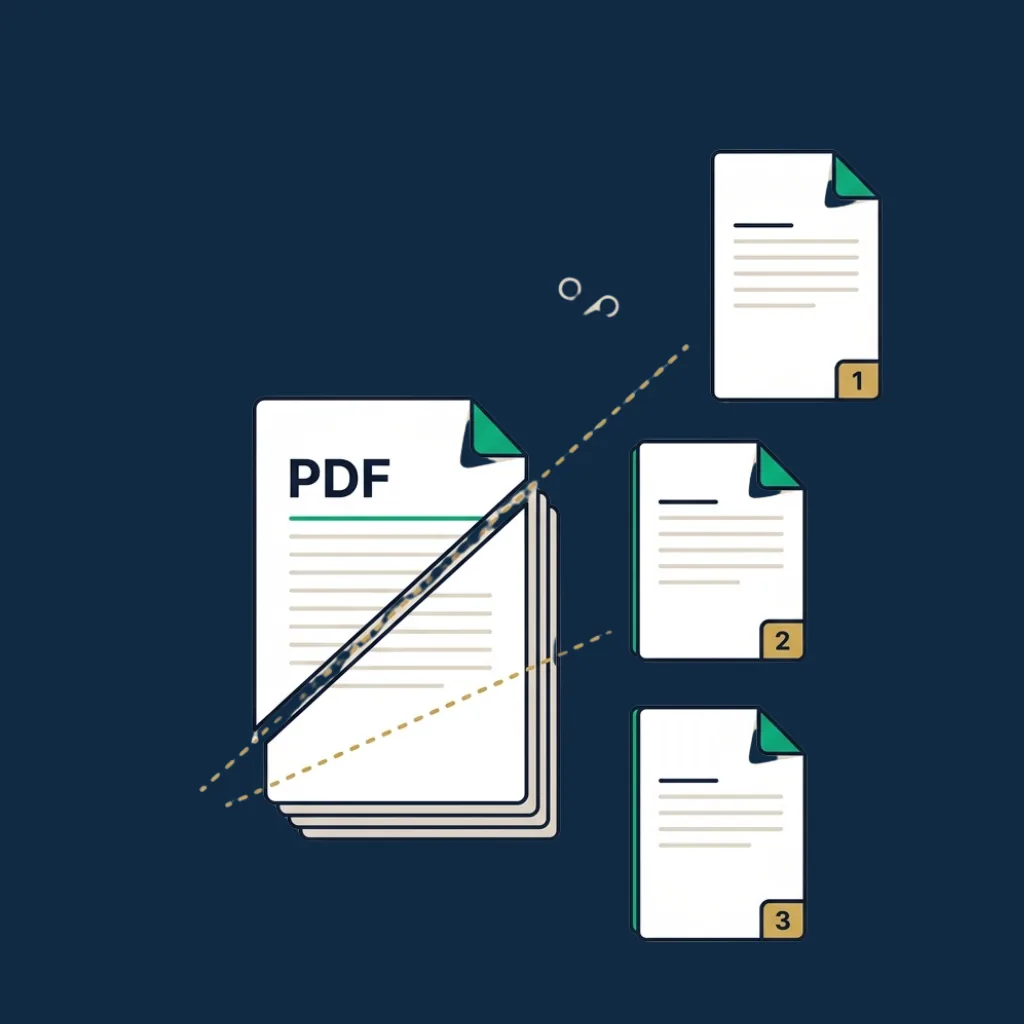
Use commas for individual pages and dashes for ranges. Order matters in the output.
Step-by-step guide
- 1
Drop your PDF
Drag and drop a PDF (up to 50 MB) or click to browse. The tool shows the page count so you know what you are working with.
- 2
Pick pages or ranges
Type ranges like "1-5, 8, 12-14" to extract those pages into a single output file. Or switch to "split into individual files" to get one PDF per page.
- 3
Hit split
One click produces the output PDF (or a ZIP if you chose individual files). The original file stays untouched.
- 4
Download
The split output downloads automatically. Open it in any PDF reader to confirm the right pages came through.
Why use this tool
100% private: nothing uploaded
Everything runs in your browser. No backend receives your file. Close the tab and everything is discarded.
No account, no email, no watermark
Most "free PDF splitter" sites either email-gate the download, watermark the output, or upload to a server. Ours does none of those.
Range syntax that just works
Type "1-5, 8, 12-14" the way you would in a print dialog. No clicking through page thumbnails for forty pages.
Fast: under 5 seconds
Selected pages are copied into a fresh PDF without re-rendering. Most splits complete in under a second on a modern laptop.
Works on any device
Tested on Windows, macOS, Linux, iOS, and Android. The page-range input is keyboard-friendly on desktop and touch-friendly on phones.
Up to 50 MB input
Comfortable headroom for most contracts, reports, and scanned documents. For larger files, a desktop tool is the better fit.
Common use cases
Extract a single signed page
Receive a 30-page contract back from a client and only need the signature page filed: extract page 27 in two clicks.
Send only the relevant section
A colleague needs the appendix from a 200-page report. Pull pages 145–168 instead of forwarding the whole file.
Hit a file-size upload limit
Job board accepts only 5 MB? Split off the cover letter pages and submit them separately, or drop unnecessary attachments to fit under the cap.
Remove blank or duplicate pages
Scanners often add blank pages between sheets. List the pages you actually want and split into a clean output.
Prepare a contract pack for partial signing
When only certain pages need to be initialled or signed, extract those pages to send for signature without exposing the rest.
Archive specific sections
Save chapter 3 of a regulatory filing or just the financial statements section from an annual report into its own file for easy retrieval.
When this tool is enough, and when a desktop PDF editor is the right call
This tool is built for one job: extract specific pages or page ranges from a PDF and download them. For that workflow it is faster than any desktop editor: no install, no license, no learning curve.
It stops being the right tool the moment any of these are true:
- You need to edit page content (text, images, annotations). This tool only extracts pages as-is; for content edits, use a desktop editor (Acrobat, PDF Expert, Foxit).
- You need OCR on scanned pages after splitting. The tool preserves pages exactly as they are. If the input is image-only scans, the split output is too.
- Your PDF is encrypted or password-protected. Remove the password in your PDF reader first, then split.
- You need to redact content from extracted pages, for example before sharing a contract excerpt with a third party. Splitting removes pages but does not redact what stays. Use a redaction-aware tool for that.
- Form fields, digital signatures, or accessibility tags must be preserved cleanly. The page-extraction process handles text and images well but may not preserve every interactive element. For compliance-sensitive splits, use a desktop PDF editor.
For routine extracting and sending of pages from contracts, reports, and scans, this tool is faster and respects your privacy in a way most "free PDF tool" sites do not.
Honest limitations
- ! Input file capped at 50 MB. Larger files will not load.
- ! Encrypted or password-protected PDFs are rejected. Remove the password in your PDF reader first.
- ! Page extraction only: no content editing, no annotations, no signatures added during split.
- ! No OCR. Scanned image-only pages stay image-only in the output.
- ! Form fields (AcroForm) and digital signatures may not survive cleanly through the page copy; for compliance-sensitive splits, use a desktop PDF editor.
- ! No PDF/A conversion, no compression, no metadata preservation beyond what is copied by default in standard PDFs.
Need to send the split PDF for signature?
Once you have extracted the right pages, the next step is usually to get them signed. See our editor-tested ranking of full eSignature platforms; the right pick depends on your team size and compliance needs.
Compare eSignature platforms →Frequently asked questions
Is this free PDF splitter really free?
Is my PDF uploaded anywhere?
How do I write the page-range syntax?
Can I split into one file per page?
Will the output preserve quality?
What about splitting password-protected PDFs?
Will form fields and digital signatures survive?
Can I reorder pages while splitting?
Related tools and articles
Merge PDFs online
After splitting: combine the extracted pages with other files into one PDF.
Open →
Sign a PDF online
Once you have the right pages, drop your signature on them and download.
Open →
Signature Generator
Create a transparent signature image for any PDF.
Open →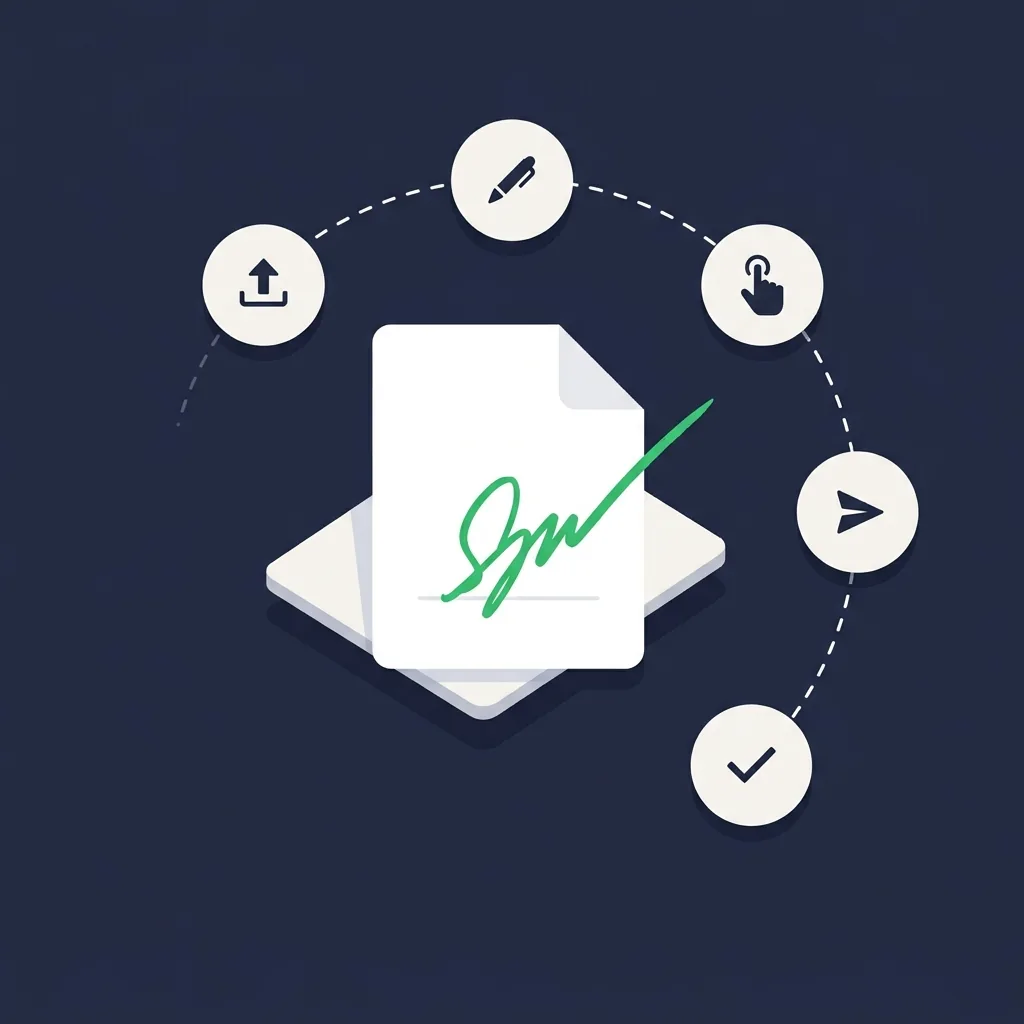
Guide: how to sign a PDF online
Five ways to sign a PDF, from this tool through to enterprise platforms.
Open →
eSignature platform reviews
When you outgrow free tools: our editor-tested ranking of full platforms.
Open →