"How do I sign this PDF" is the most common question new users bring to eSignature platforms, and the answer in 2026 depends entirely on what you are actually trying to do. Sign a single document for yourself? Send a contract to a client and capture their signature? Collect signatures from twelve people in a specific order? These are different problems with different right answers.
This guide walks through the five methods that actually work, in order from "purpose-built and bulletproof" to "fine for one-off cases but not how you should run a business." Each method has its place. The mistake we see most often is people using the wrong tool for the situation, printing a contract to scan it back, or paying for DocuSign Personal to sign their own tax forms once a year.
Before you start
Three quick questions to answer before picking a method. They determine which of the five paths below is right for you.
- Are you signing for yourself, or asking someone else to sign? Self-signing has more lightweight options. Requesting a signature from someone else needs a platform that handles delivery, authentication, and the audit trail.
- How many signatures, how often? One PDF this year is a different problem than ten contracts a month.
- Does the document need to be legally defensible in court? Almost any method satisfies the basic legal definition of an electronic signature, but evidentiary weight varies enormously. A signed PDF from DocuSign or Sign.Plus carries a chain-of-custody record that a typed name in Preview does not.
For everything in this article we assume the document is a standard PDF. If it’s a Word doc, almost every platform converts it on upload, but plain text documents lose formatting fidelity and you will want to convert to PDF first.
Method 1: Dedicated eSignature platforms
The right answer for almost any business use case. Dedicated platforms (Sign.Plus, DocuSign, PandaDoc, Dropbox Sign, formerly HelloSign, and Adobe Sign) handle the entire flow: upload, field placement, recipient management, authentication, signing, tamper-evident sealing, and audit trail. The user experience differs in detail but the workflow is consistent across the category.
The generic flow on Sign.Plus, DocuSign, or PandaDoc
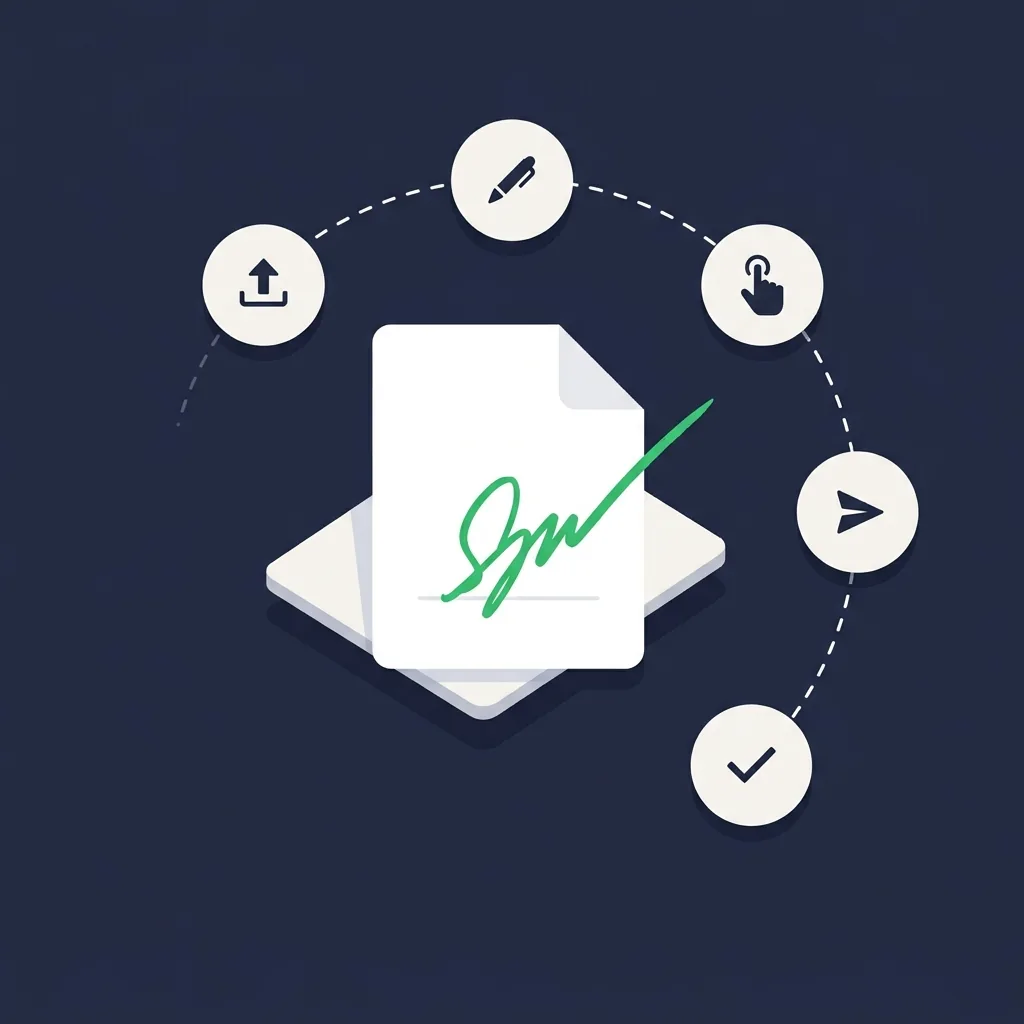
- Upload the PDF. Drag and drop into the platform’s sender interface. Most platforms accept up to 25 MB on free or entry plans, 100 MB or more on paid plans.
- Add recipients. Enter their names and email addresses. Set signing order if it matters (sequential, parallel, or hybrid). Specify whether each person needs to sign, initial, fill in fields, or just receive a copy.
- Place fields. Drag signature, initials, date, name, and custom text fields onto the document. Assign each field to a specific recipient. This step is where most platforms differentiate themselves on UX, Sign.Plus and Dropbox Sign feel notably faster here than older interfaces.
- Configure authentication. Email link is the default. SMS one-time code, knowledge-based authentication, or government ID match are available on higher tiers for higher-stakes documents.
- Send. The platform emails each recipient a unique signing link. They click, authenticate, sign through their browser or mobile app, and the document moves to the next signer.
- Download. Once everyone signs, you receive the completed PDF plus a separate certificate of completion documenting every action.
Time to send your first document on a platform you have not used before: about three minutes on Sign.Plus, four to six on DocuSign or PandaDoc once you find the right buttons. After the first send, every subsequent send is under a minute.
This is the right method any time the document matters, contracts, NDAs, offer letters, vendor agreements, anything you might need to defend in court. It is overkill for signing your own tax return.
Method 2: Adobe Acrobat (Online and Desktop)
Adobe has two distinct products that get conflated. Acrobat Reader is the free PDF viewer with a built-in "Fill & Sign" tool for self-signing. Adobe Sign (now part of Adobe Acrobat Sign) is the paid eSignature service comparable to DocuSign.
Self-signing in Acrobat Reader (free)
- Open the PDF in Acrobat Reader (desktop) or at acrobat.adobe.com (browser).
- Choose Fill & Sign from the right sidebar.
- Click the signature icon, draw or type your signature, and place it on the document.
- Save the file. The signed PDF is now yours.
This method is fine for documents you are signing for yourself, tax forms, expense reports, internal acknowledgments. It does not produce an audit trail, does not verify your identity, and does not seal the document with a tamper-evident hash. For anything you need to send to another party as a contract. This is not the right tool.
Adobe Acrobat Sign (paid)
The paid product is a full eSignature platform with sender plans starting around $14.99/month for individuals and $24.99/user/month for teams. Workflow, authentication, audit trails, and integrations are all comparable to DocuSign, and particularly attractive for organizations already deep in the Adobe ecosystem.
Method 3: Google Docs and Microsoft 365
Both Google and Microsoft have shipped native eSignature features in recent years. They are convenient if your document already lives in those ecosystems and your needs are modest.
Google Docs eSignature
Google rolled out native eSignature for Workspace in 2023 and made it broadly available across Business and Enterprise plans in 2024. From a Google Doc, choose Tools → eSignature, place signature and date fields, add a recipient, and send. The recipient signs through a Google-hosted page, and the signed document is saved back to Drive with an audit trail.
Limits as of 2026: only one or two recipients per document on most plans, no sequential routing across more than a handful of signers, fewer field types than dedicated platforms. It is genuinely useful for routine business documents but does not replace a dedicated platform for complex flows.
Microsoft 365 and Adobe Sign integration
Microsoft does not have a native standalone eSignature feature comparable to Google’s, but the Word and Outlook integrations with Adobe Sign and DocuSign are deep enough to feel native. From within Word, you can add a "Request Signatures" action that pushes the document into the connected platform and tracks status back inside Microsoft 365.
Method 4: Mobile apps
Most signers in 2026 complete documents on phones. Senders are increasingly doing the same. Every major eSignature platform has mature iOS and Android apps, the differences come down to polish and feature parity with the web product.
Sign.Plus has one of the cleaner mobile experiences in the category, the app feels native, includes the bundled Scan.Plus document scanner, and supports biometric authentication. DocuSign’s mobile app is feature-complete with Face ID, Touch ID, and offline audit access. Dropbox Sign and PandaDoc mobile apps are functional but lighter than their web counterparts.
For self-signing a PDF on a phone, the workflow is straightforward:
- Open the document in your mail client or files app.
- Share to your eSignature app, or open it from inside the app.
- Tap to place signature, initials, and date fields. Sign with your finger or a stylus.
- Save and share the signed PDF back where it needs to go.
iOS users have an additional option: the built-in Markup tool in Files and Mail lets you sign a PDF without installing anything. Open the document, tap the markup icon, choose the signature tool, and sign. It works for self-signing only and does not produce an audit trail, but for one-off PDFs it is genuinely the fastest method on Apple devices.
Most platforms cap free or entry-tier file uploads at 25 MB. If your PDF is larger than that, which is common for scanned documents or design files, either compress the PDF first (Smallpdf, ILovePDF, or Adobe’s built-in compression) or upgrade to a plan with a higher limit.
Method 5: Self-signing vs requesting signatures
The most common confusion we see in support tickets: people pay for an eSignature platform and then can’t figure out how to sign their own document. The platforms are optimized for the "send to someone else" flow, and the "sign for yourself" path is sometimes hidden behind a different menu.
On Sign.Plus, choose Sign Yourself from the dashboard. On DocuSign, the option is labeled Sign a Document. On PandaDoc, it’s Self-Sign. On Dropbox Sign, Just Me. The flow is the same: upload, place fields on yourself, sign, download. No email, no recipient, no waiting.
For the everyday "I need to sign this PDF and send it back" case, self-signing through any of these platforms gives you a properly sealed, audit-trailed document for free or near-free. Adobe Reader’s Fill & Sign is faster but produces a weaker record.
If a recipient asks you to print, sign, scan, and email the document back, push back politely and send them a Sign.Plus or DocuSign signing link instead. You will get a cleaner, legally stronger document and they will sign it from their phone in under a minute. The print-scan-email loop is a 2005 workflow.
Choosing the right method
A simple decision tree:
- Signing for yourself, occasionally: Acrobat Reader Fill & Sign, iOS Markup, or the self-sign feature on a free Sign.Plus / Dropbox Sign account. All free, all fast.
- Sending a contract to a client or partner: Sign.Plus or Dropbox Sign for moderate volume. Step up to DocuSign or PandaDoc if you need deeper integrations or workflows. Free tiers exist on all of them. We compare the free options in our free eSignature guide.
- Routine business signing across a small team: Sign.Plus Professional, DocuSign Standard, PandaDoc Starter. The right answer depends on integration needs, see our Sign.Plus vs DocuSign comparison.
- Already living in Google Docs and only signing routine documents: the native Workspace eSignature feature is convenient and free if you have Business or Enterprise.
- Enterprise with deep CRM, HR, or ERP integrations: DocuSign or Adobe Sign. The premium pricing buys integration depth and compliance ceiling.
Common pitfalls
The mistakes that show up most often:
- Sending a flattened PDF. If you fill out form fields in Acrobat and "save as," some versions of Acrobat will flatten the form fields into a static image. The recipient cannot then add their own fields. Use the eSignature platform to add fields after upload, not before.
- Hitting the file size limit. 25 MB is the typical free-tier cap. Compress before uploading. Adobe’s online compressor and Smallpdf both work well.
- Using the wrong field assignments. If signature fields are not assigned to specific recipients, every recipient sees and can sign every field. Always assign fields explicitly.
- Skipping authentication on high-stakes documents. Email-only authentication is fine for routine commercial agreements. For documents over $10,000 or anything legally sensitive, add SMS or knowledge-based authentication.
- Not downloading the certificate of completion. The certificate is a separate PDF that documents every action, IP, timestamp, authentication. Some platforms include it inside the signed document; others provide it as a separate download. Either way, store it. Your evidence should not depend on continued access to the platform.
- Using a screenshot of a signature as proof. A pasted image of a signature is the weakest possible record. Use a real eSignature platform, even the free tiers produce documents that are an order of magnitude stronger as evidence.
The right method for signing a PDF online in 2026 is almost always "use a real eSignature platform." Free tiers exist on Sign.Plus, Dropbox Sign, and PandaDoc, and the floor for legal weight and document integrity is so much higher than the alternatives that there is rarely a reason to do it any other way. The five methods above all have their place, but if you find yourself printing, scanning, or emailing PDFs around in 2026, there is a better way.