
Merge multiple PDFs into one: free, in your browser
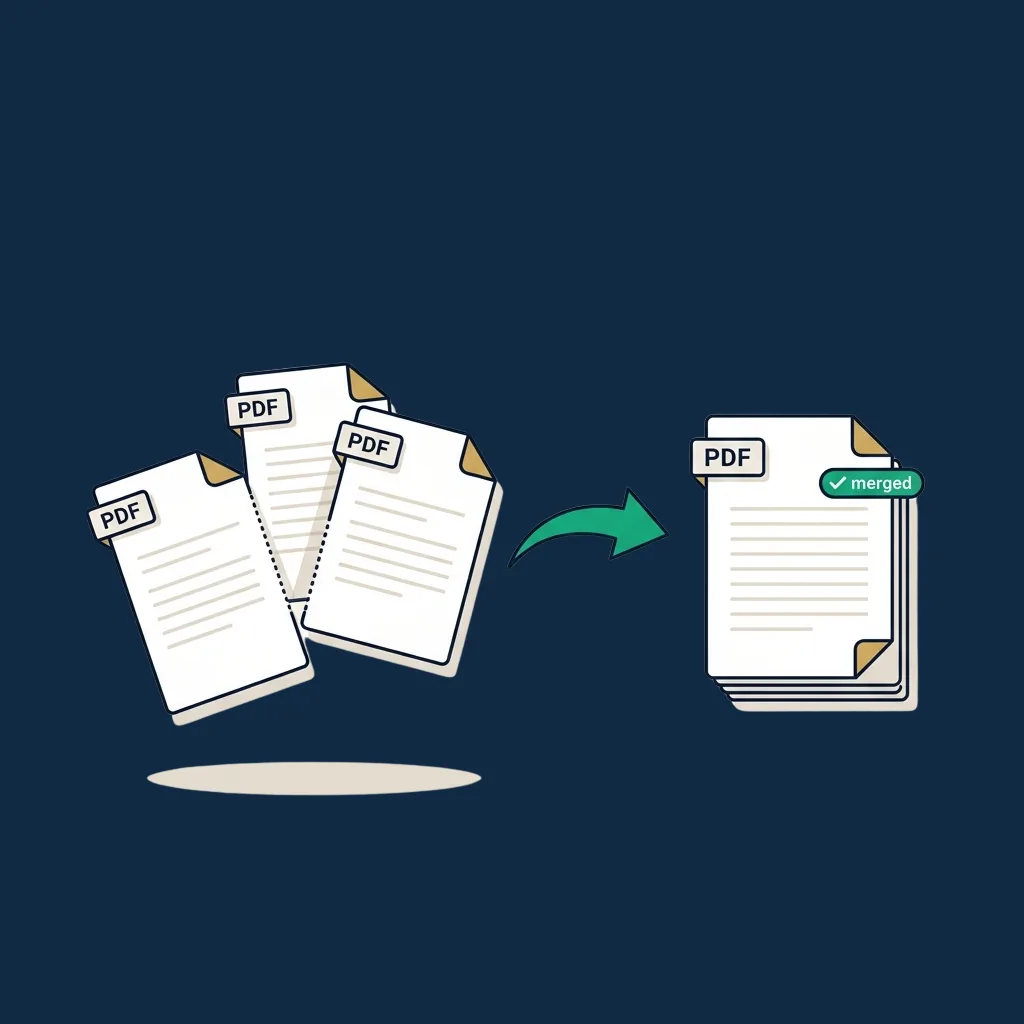
Drop two or more PDFs, reorder them in the list, then click merge to get a single combined file back. The whole process takes ten seconds and runs entirely in your browser. Your files are never uploaded to a server: pages are copied and saved locally on your device, with no server round-trip.
Files to merge (drag to reorder)
Step-by-step guide
- 1
Drop your PDFs
Drag and drop two or more PDFs (up to 50 MB each) or click to browse. Each file appears in the list with its page count and size.
- 2
Reorder if needed
Use the up/down arrows to set the order. Pages in the merged output appear in exactly this order, with the top of the list going first.
- 3
Remove anything you do not want
Hit the × on a file to drop it from the list. Add more later with the "Add more" link without losing your current order.
- 4
Hit merge & download
One click produces a single combined PDF named merged.pdf. The original files are untouched.
Why use this tool
100% private, nothing uploaded
Everything runs in your browser. No backend receives your files, and closing the tab discards everything.
No account, no email, no watermark
Most "free PDF merger" sites either email-gate the download, watermark the output, or upload to a server. Ours does none of those.
Works on any device
Tested on Windows, macOS, Linux, iOS, and Android. The drag-to-reorder works on touch devices too.
Fast, under 10 seconds
Reads each file once, copies pages into a single output, downloads. Most merges complete in under a second on a modern laptop.
Page order is preserved
Each source PDF's pages stay in their original order; only the file order changes. No re-rendering, no quality loss.
Up to 50 MB per file
Comfortable headroom for most workflows. For larger files, a desktop tool is the better fit.
Common use cases
Bundling a contract pack before signing
Cover letter, main agreement, appendix and W-9: combine the four PDFs into one before sending the whole pack to a client for signature.
Joining scanned pages into a single file
When your scanner outputs each page as a separate PDF, merge them in the right order before emailing or filing.
Tax filing and accounting
Receipts, invoices and bank statements: combine the support documents for a single quarter into one PDF for your accountant or for tax software upload.
Job applications
Resume + cover letter + portfolio + reference letters into a single PDF that meets a single-file upload requirement on a job board.
Real-estate closings
Buyer disclosures, inspection report, title commitment and lender forms, bundled into one closing packet PDF.
Academic submissions
Research papers with separate PDF figures or appendices that need to be combined into a single submission file before upload.
When this tool is enough, and when a desktop PDF editor is the right call
This tool is built for one job: combine multiple PDFs into one and download it. For that workflow it is faster than any desktop PDF editor: no install, no license, no learning curve.
It stops being the right tool the moment any of these are true:
- You need to reorder pages within a file, not just files within a sequence. Use a desktop editor (Acrobat, PDF Expert, Foxit) or our PDF Splitter, which extracts pages you can then re-combine.
- You need to remove specific pages from a file. Same answer: splitter first, then merger.
- You need to OCR scanned content as you merge. This tool preserves pages as-is. If your input PDFs are image-only scans, the output will also be image-only.
- Your files are encrypted or password-protected. Remove the password in your PDF reader first, then merge.
- The merged file goes through a workflow: recipients sign it, edit it, return it. For that motion you need an eSignature platform, not a static merger.
For routine combining of small numbers of PDFs, this tool is faster and respects your privacy in a way most "free PDF tool" sites do not.
Honest limitations
- ! Each input file capped at 50 MB. The combined output is unlimited but practical browser memory caps somewhere around 250 MB.
- ! Encrypted or password-protected PDFs are rejected. Remove the password in your PDF reader first.
- ! No page-level reordering, only file-level. To reorder pages within a single PDF, use the splitter first.
- ! No OCR. Input pages are copied as-is. If a source is an image-only scan, the merged output is too.
- ! No PDF/A conversion, no compression, no metadata preservation beyond what is copied by default in standard PDFs.
- ! Form fields (AcroForm) and digital signatures from the source files may not survive the merge cleanly, so for compliance-sensitive merges, use a desktop PDF editor.
Need to send the merged PDF for signature?
Once your contract pack is combined, the next step is usually to get it signed. See our editor-tested ranking of full eSignature platforms; the right pick depends on your team size and compliance needs.
Compare eSignature platforms →Frequently asked questions
Is this free PDF merger really free?
Are my PDFs uploaded anywhere?
How many PDFs can I merge at once?
Will the merged PDF preserve quality?
What about merging password-protected PDFs?
Will form fields and digital signatures survive?
Can I reorder pages inside a single PDF before merging?
Does the merged PDF look the same on every device?
Related tools and articles
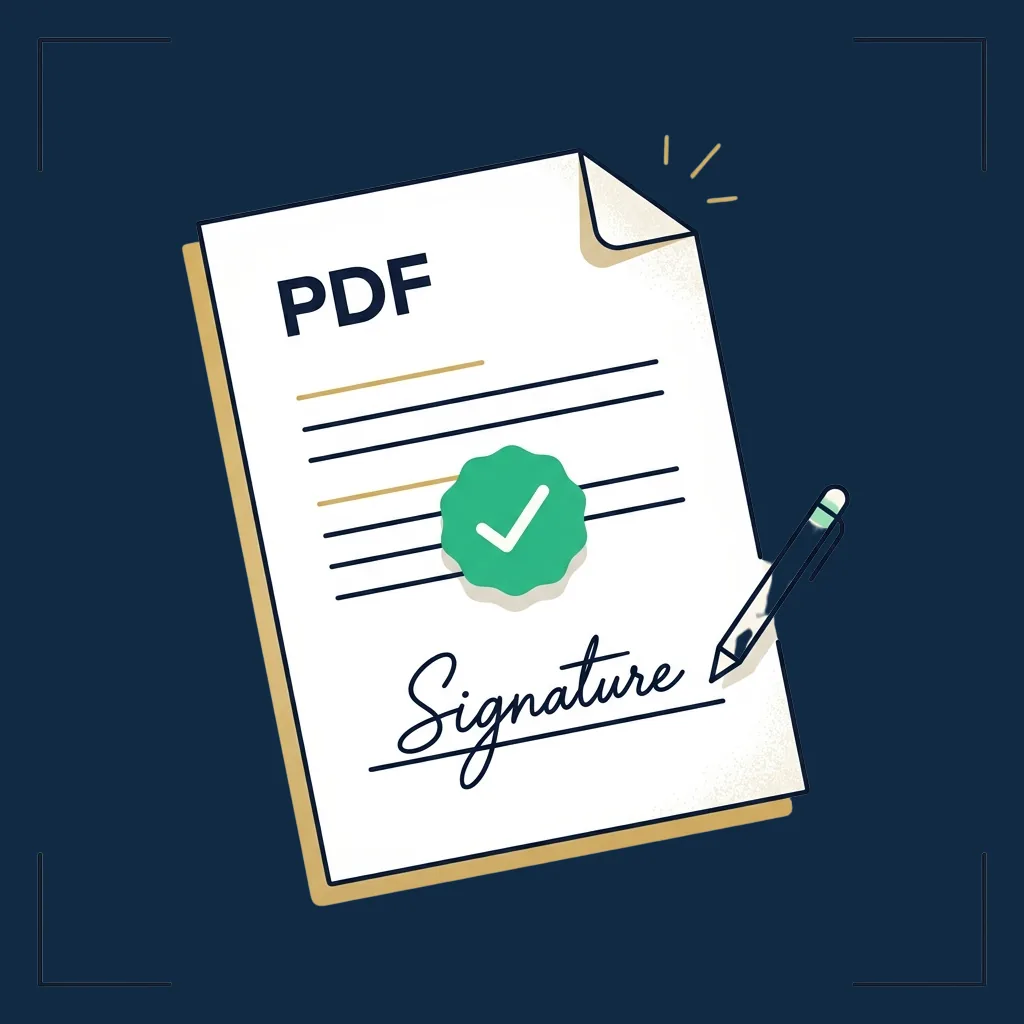
Sign a PDF online
After merging, drop your signature on the combined file and download it.
Open →
Signature Generator
Create a transparent signature image for any PDF.
Open →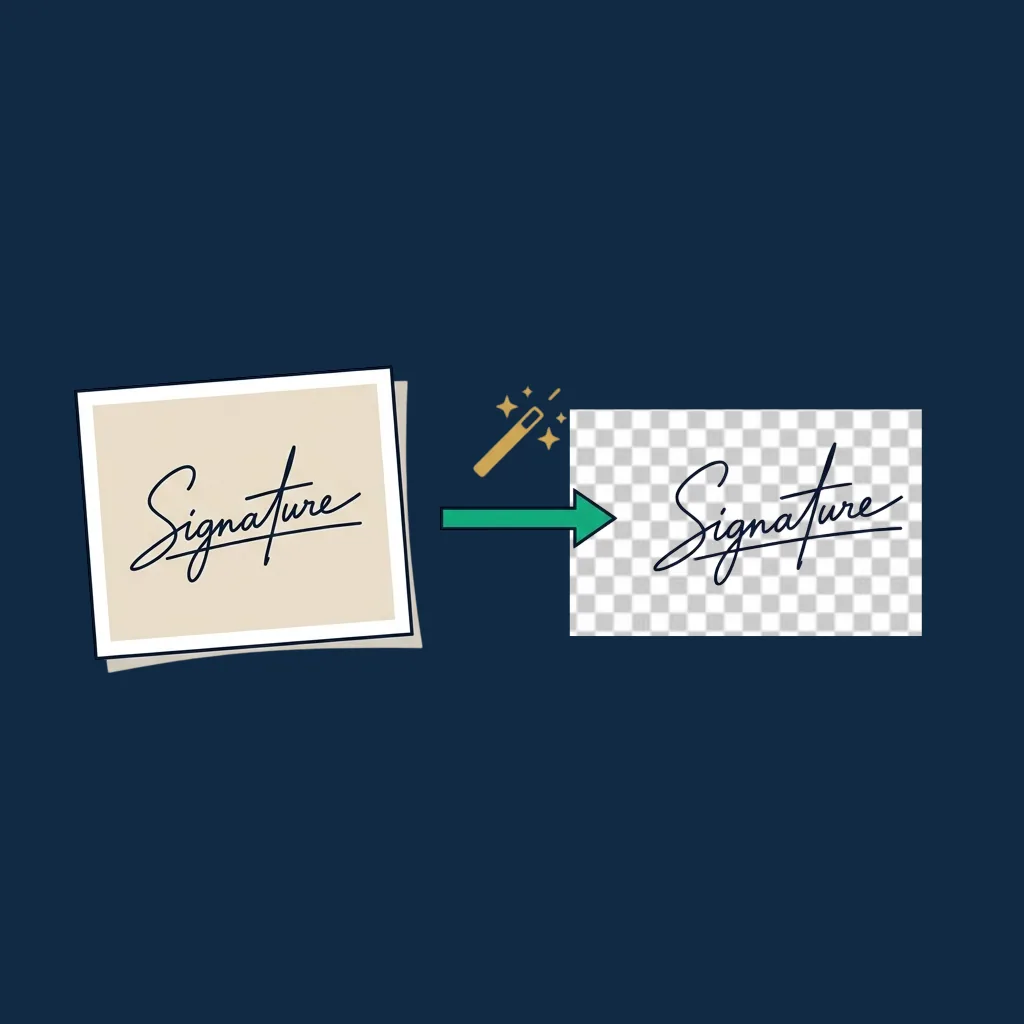
Signature Background Remover
Clean up a scanned signature before placing it.
Open →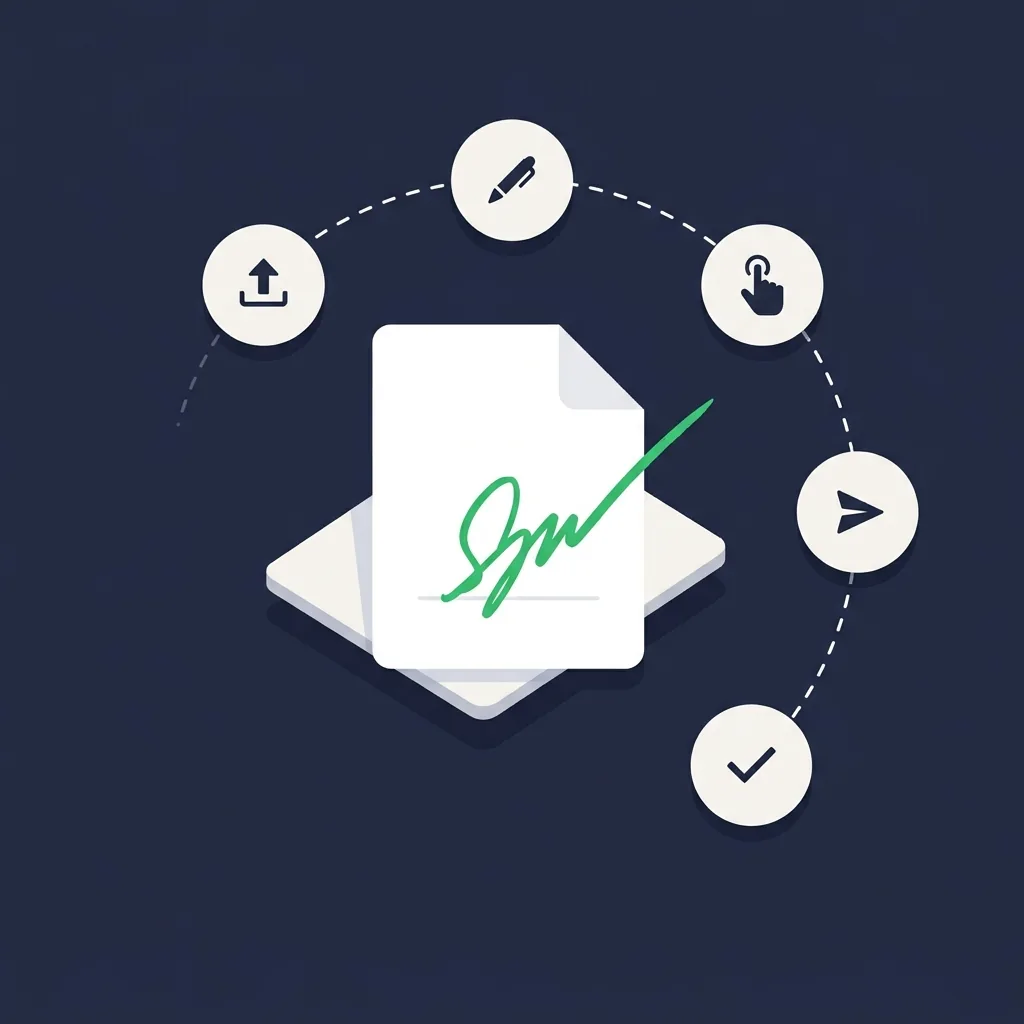
Guide: how to sign a PDF online
Five ways to sign a PDF, from this tool through to enterprise platforms.
Open →
eSignature platform reviews
When you outgrow free tools: the editor-tested ranking of full platforms.
Open →