
Convert PDF pages to JPG images: free, in your browser
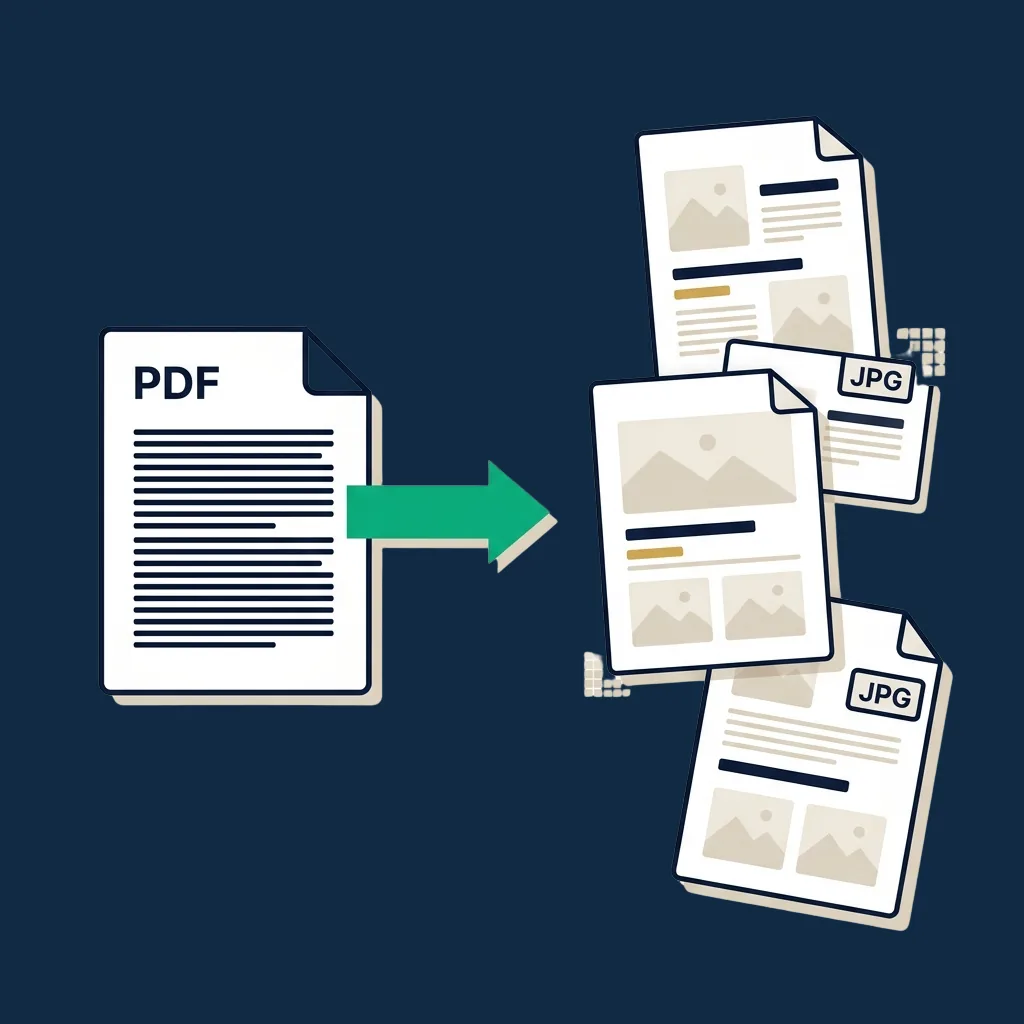
Drop a PDF, pick the quality, hit convert, and get back a JPG for each page (or a ZIP if there are several). The whole flow runs in your browser. Your file is never uploaded to a server. Pages are rendered and exported to JPEG locally on your device.
Step-by-step guide
- 1
Drop your PDF
Drag and drop a PDF (up to 50 MB) or click to browse. The tool counts pages so you know what is coming.
- 2
Pick output quality
High (default) is best for documents. Medium and low produce smaller files at the cost of visible compression on text-heavy pages.
- 3
Hit convert
Each page is rendered to canvas at a sensible resolution and exported as JPEG. Single-page PDFs download a single .jpg file, while multi-page PDFs download a ZIP with one image per page.
- 4
Download
The output downloads automatically. Open it in any image viewer to confirm the pages look right.
Why use this tool
100% private: nothing uploaded
Everything runs in your browser. No backend receives your file. Close the tab and everything is gone.
No account, no email, no watermark
Most "free PDF to JPG" sites either email-gate the download, watermark the output, or upload to a server. Ours does none of those.
Quality slider that actually matters
High keeps text sharp, Medium balances size against quality, and Low is right for quick previews. Choose based on your use case, not on what some site decides for you.
Fast: under 5 seconds for short docs
Pages render in parallel. A 10-page PDF typically completes in 2–3 seconds on a modern laptop.
Works on any device
Tested on Windows, macOS, Linux, iOS, and Android. The output is standard JPEG that any image viewer or editor opens.
Up to 50 MB input
Comfortable headroom for most contracts, reports, and scanned documents. For larger files or higher resolution, a desktop tool is the better fit.
Common use cases
Share a contract page on a messaging app
WhatsApp, Slack, Telegram all accept JPG inline but treat PDFs as attachments. Convert the relevant page to share it as an image instead of a download.
Embed a document image in a slide deck
Drop a JPG directly into a Google Slides or PowerPoint deck instead of taking a screenshot. The text stays sharp at presentation resolution.
Submit to a portal that only accepts JPG
Some government sites, job applications, and identity verification flows accept JPG only. Convert the right pages and upload them in the required format.
Generate a thumbnail or preview
Show the first page of a report on your website or in a CMS. Convert page 1 to JPG and use it as the cover image.
Quick visual proof of a signed page
Send a JPG of the signed signature page to confirm a contract is done, without forwarding the whole PDF.
Compress for email attachment limits
A scanned PDF can be heavy. Converting to medium-quality JPG often produces a smaller file you can attach without compression friction.
When this tool is enough, and when a desktop converter is the right call
This tool is built for one job: render each PDF page as a JPEG image and download it. For that workflow it is faster than any desktop tool: no install, no license, no learning curve.
It stops being the right tool the moment any of these are true:
- You need very high resolution output for print (300+ DPI). Browser canvas rendering tops out at the screen-resolution range. For print-grade output, use Acrobat or a dedicated converter.
- You need PNG with transparency. JPEG does not support transparency. If you need a transparent background, use a different output format and a tool that supports it.
- You need OCR or text extraction from the resulting images. This tool only renders pixels; for searchable text, use a PDF reader's "save as text" or a dedicated OCR tool.
- Your PDF is encrypted or password-protected. Remove the password in your PDF reader first, then convert.
- You need exact color accuracy (CMYK, ICC profiles). Browser canvas is sRGB only and may shift colors compared to the original PDF.
For routine document-to-image conversion at screen resolution, this tool is faster and respects your privacy in a way most "free PDF tool" sites do not.
Honest limitations
- ! Input file capped at 50 MB. Larger files will not load.
- ! Encrypted or password-protected PDFs are rejected. Remove the password in your PDF reader first.
- ! Output is JPEG only: no PNG, no WebP, no TIFF.
- ! Resolution is screen-grade (roughly 96–144 DPI). For print-quality 300 DPI output, use a desktop converter.
- ! Canvas color space is sRGB. PDFs using CMYK or wide-gamut color may shift visibly in the JPG output.
- ! No OCR. The output is image pixels, so text is no longer searchable in the JPG.
Need to send a signed PDF instead of a JPG?
JPG is great for quick sharing, but signed contracts usually need to stay as PDFs to preserve the audit trail. See our editor-tested ranking of full eSignature platforms; the right pick depends on your team size and compliance needs.
Compare eSignature platforms →Frequently asked questions
Is this PDF to JPG converter really free?
Is my PDF uploaded anywhere?
What resolution are the JPGs?
Can I get PNG instead of JPEG?
How does multi-page output work?
What about converting password-protected PDFs?
Will the JPG match the PDF colors exactly?
Does the JPG preserve text searchability?
Related tools and articles
Sign a PDF online
Sign first, then convert if you need an image of the signed page.
Open →
Merge PDFs online
Combine multiple PDFs into one before converting.
Open →
Split PDF online
Extract specific pages: convert only the ones you need.
Open →
Guide: how to sign a PDF online
Five ways to sign a PDF, from this tool through to enterprise platforms.
Open →
eSignature platform reviews
When you outgrow free tools: our editor-tested ranking of full platforms.
Open →